
Grant Access to Your Facebook Business Manager
You can follow these steps to grant access to your Facebook Business Manager to Deck Builder Marketers, so we can take over your Facebook Ads.
Step 1: Create Your Facebook Business Manager
If you don’t have one set up already, you will need to create a Facebook Business Manager Account. Your business manager account is where you can run FB ads, manage your Facebook Page and much more.
*Note: If you already have a Facebook Business Manager Set Up, skip to Step #2
Each Facebook Business Manager Account is tied back to a personal Facebook Account (the owner of the account). That is why it is necessary that you create your Business Manager, instead of us doing it for you. If we created it for you, we would own your Business Manager Account.
At Deck Builder Marketers, we always want you to be the owner of all of your assets. This way you have total control over them for the life of your business. Let’s get started!
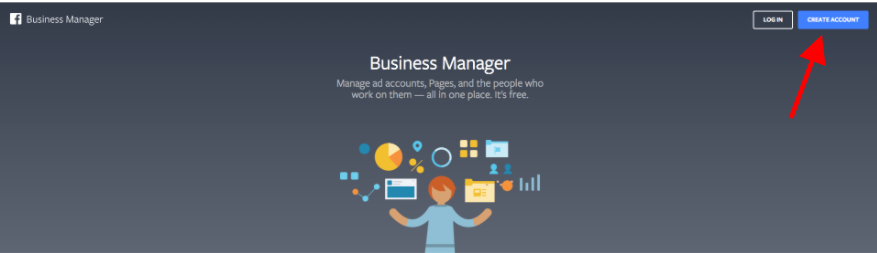
- Go to business.Facebook.com and click 'Create Account' at the top left of the page.
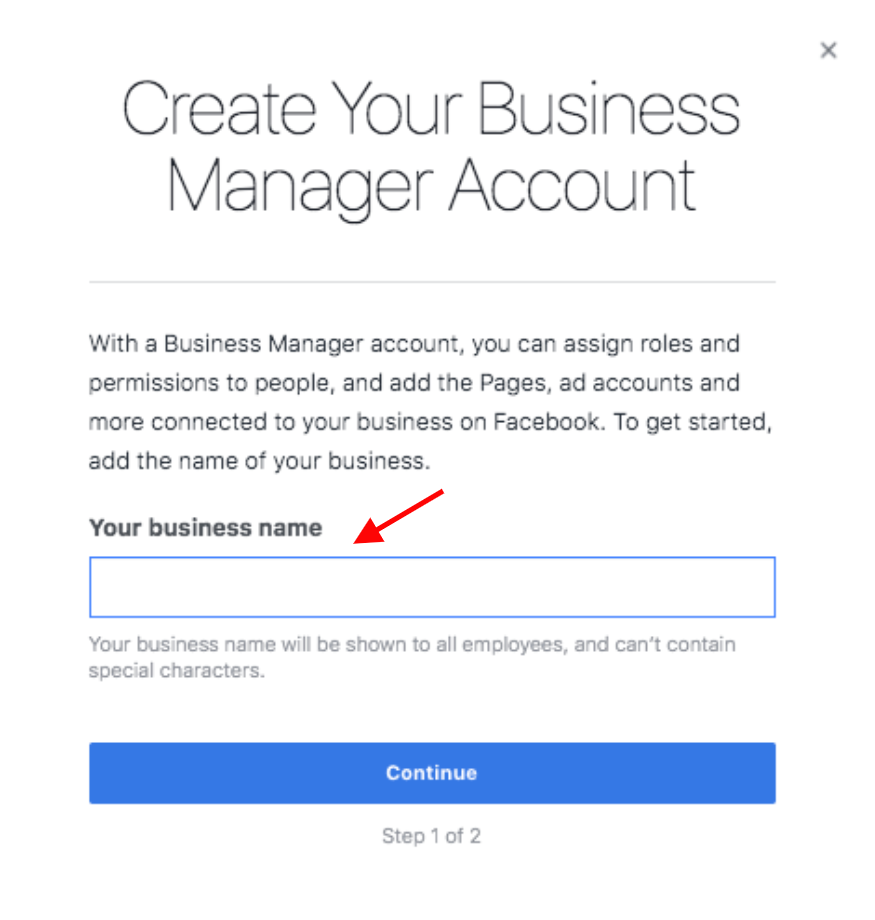
- Log in and enter your business name in the pop-up box, then click 'Continue'.
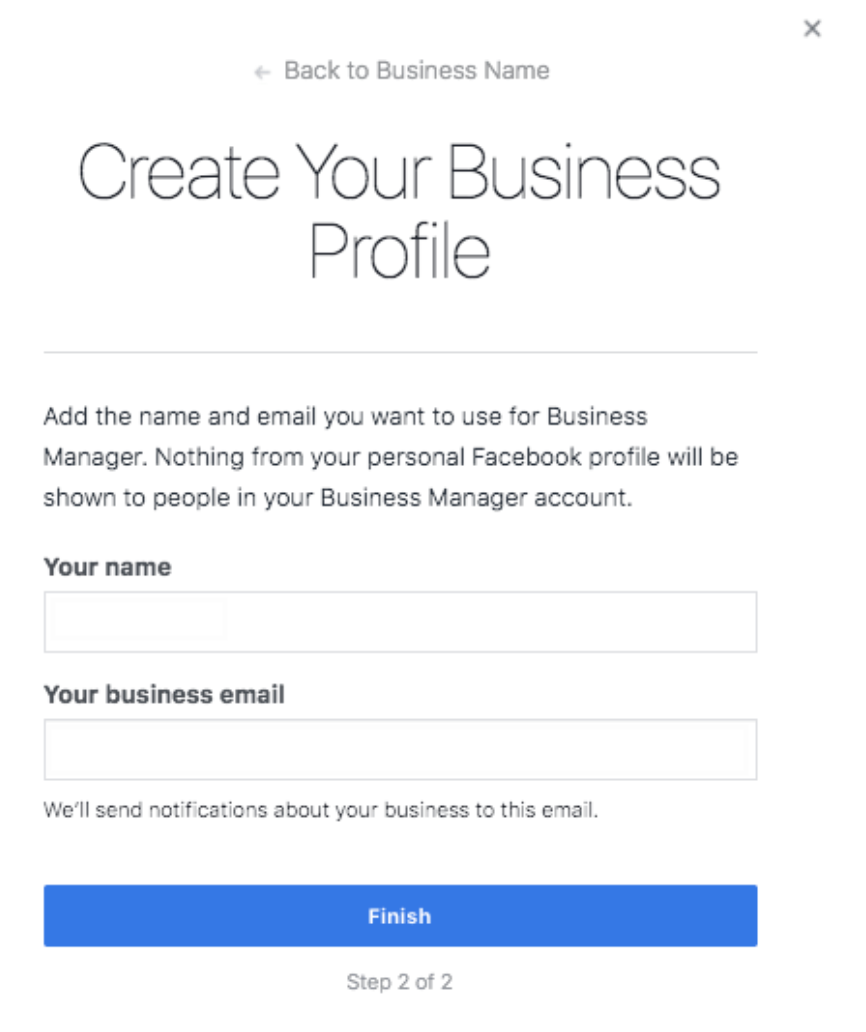
- You will enter your name and your business email that will be associated with your business manager account.
- Great! Your business manager is now created. Next, let’s set it up correctly.
Step 2: Adding a Facebook Ad Account to your Business Manager
Next, we are going to create your ad account. This is where you will create and manage your FB and Instagram ads.
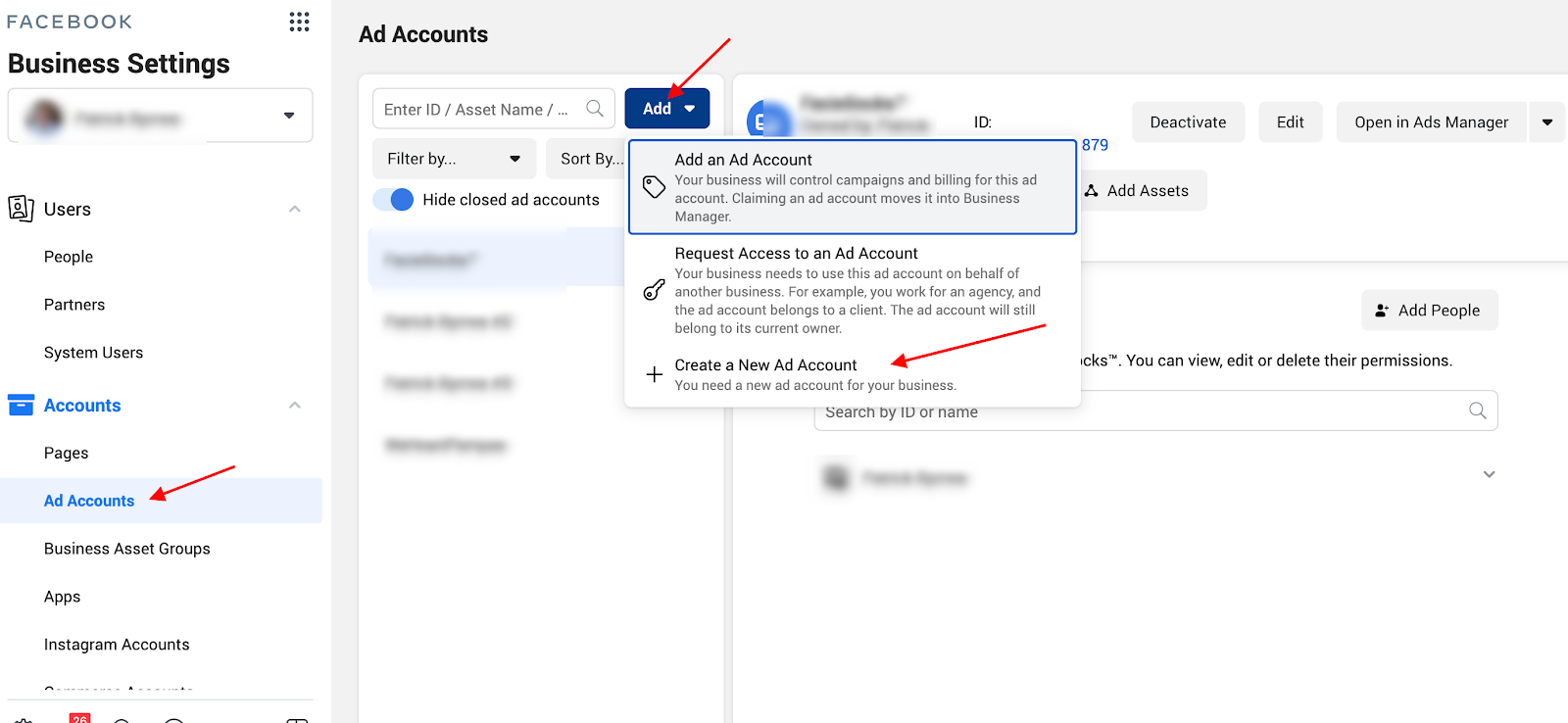
- On the left-hand side, click “Ad Accounts”. Then click “Add” and then “Create New Ad Account”.
- Next, enter your business name as the name for your ad account and select your correct time zone.
- Great! Now your add account is created.
Step 3: Add your Facebook business page
If you currently have a FB Page that was created under your personal Facebook account, you will need to add it to your Facebook Business Manager account.
*Note: You must be the admin (owner) of the page for this to work.
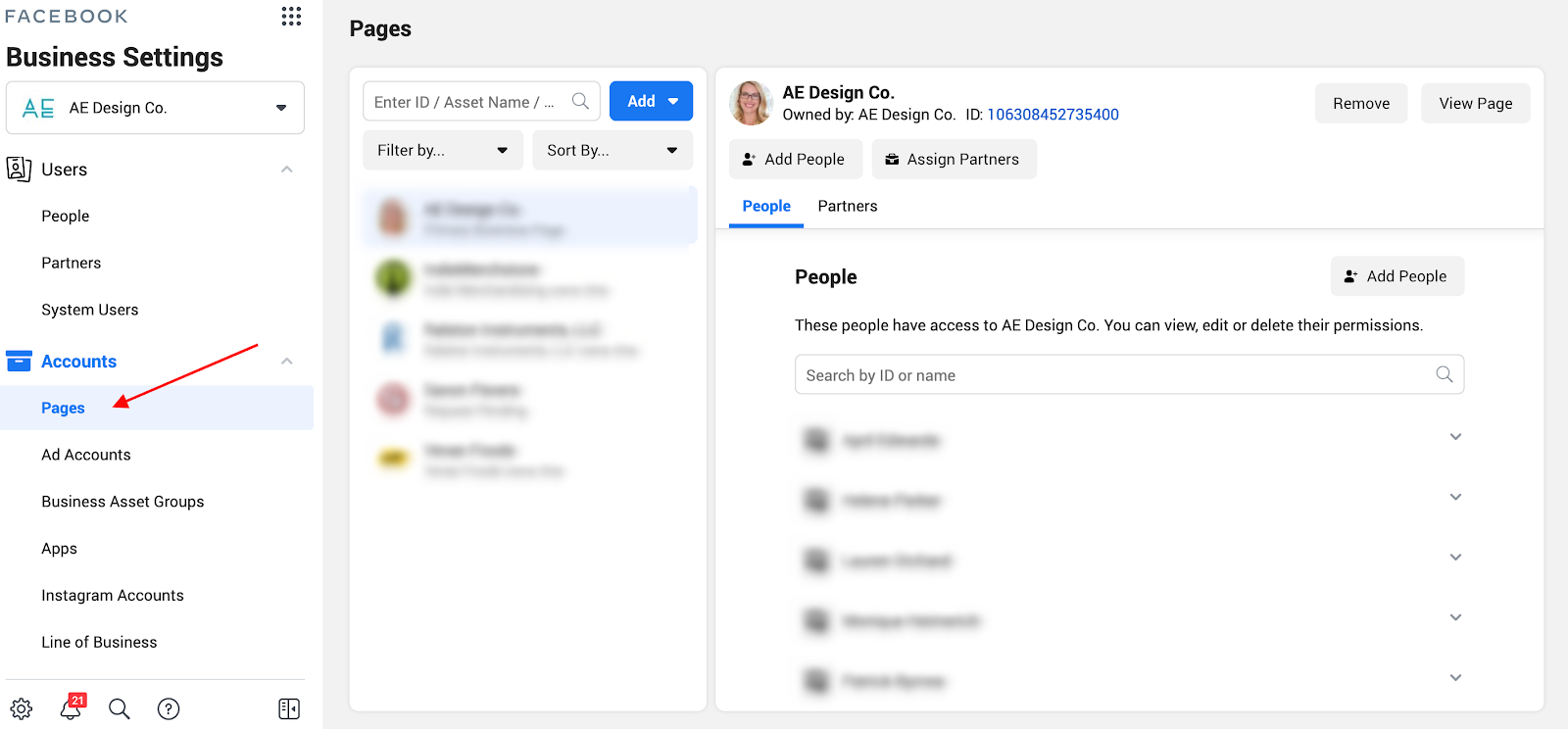
- On your left-hand side, click the tab marked “Pages”.
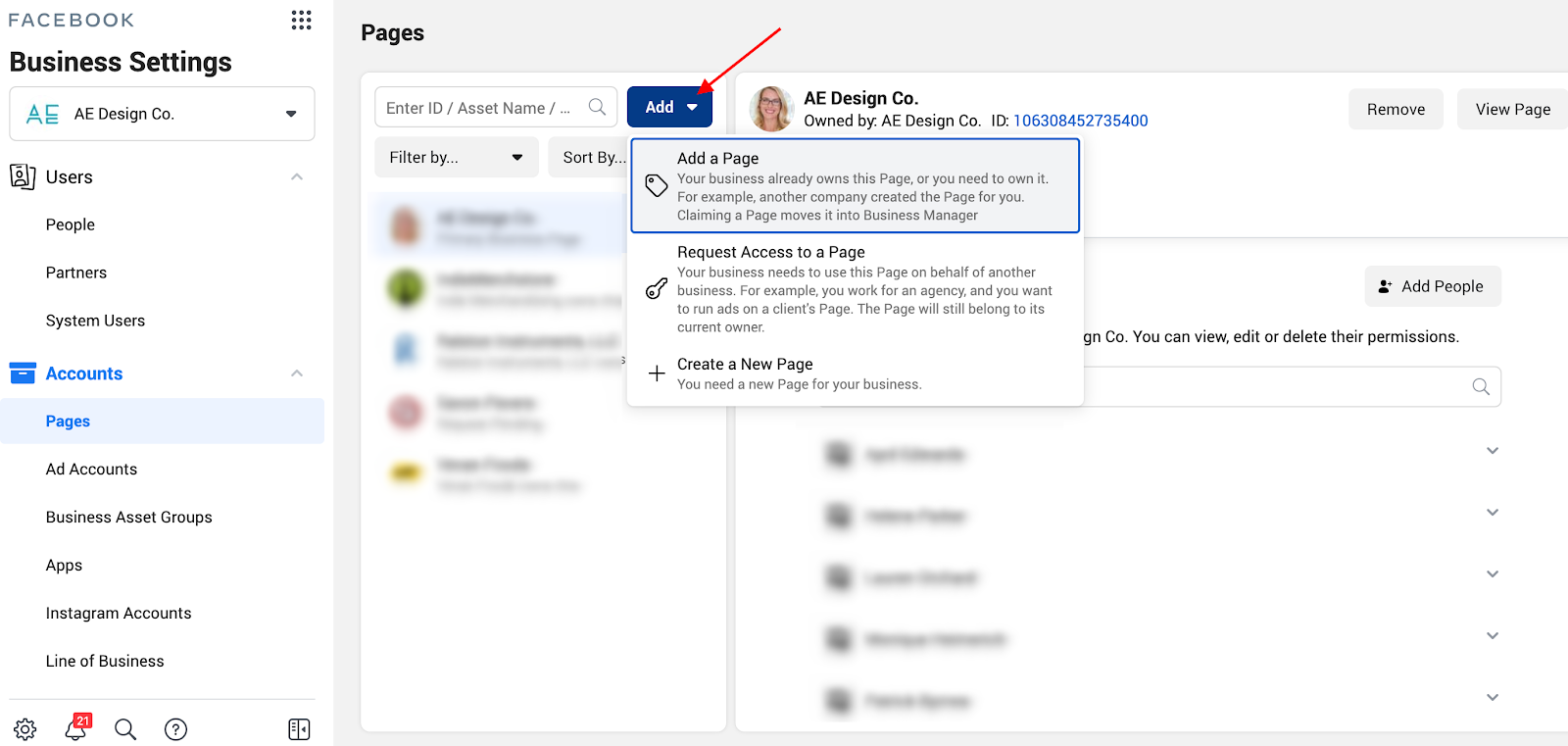
- Then in the middle, click the blue “Add” button. Then click “Add a Page”.
- In this white box, type in the exact name of your FB Page, and click “Add Page”.
- Done! The page should be instantly added to your FB Business Manager Account.
*Note: If you haven’t created a Facebook page for your business yet, simply click the “Create a New Page” button and follow the steps to create your FB page.
Step 4: Adding Deck Builder Marketers as a Partner
To be able to run ads or post to your FB or Instagram pages, we must be added as an agency partner to your ad account.
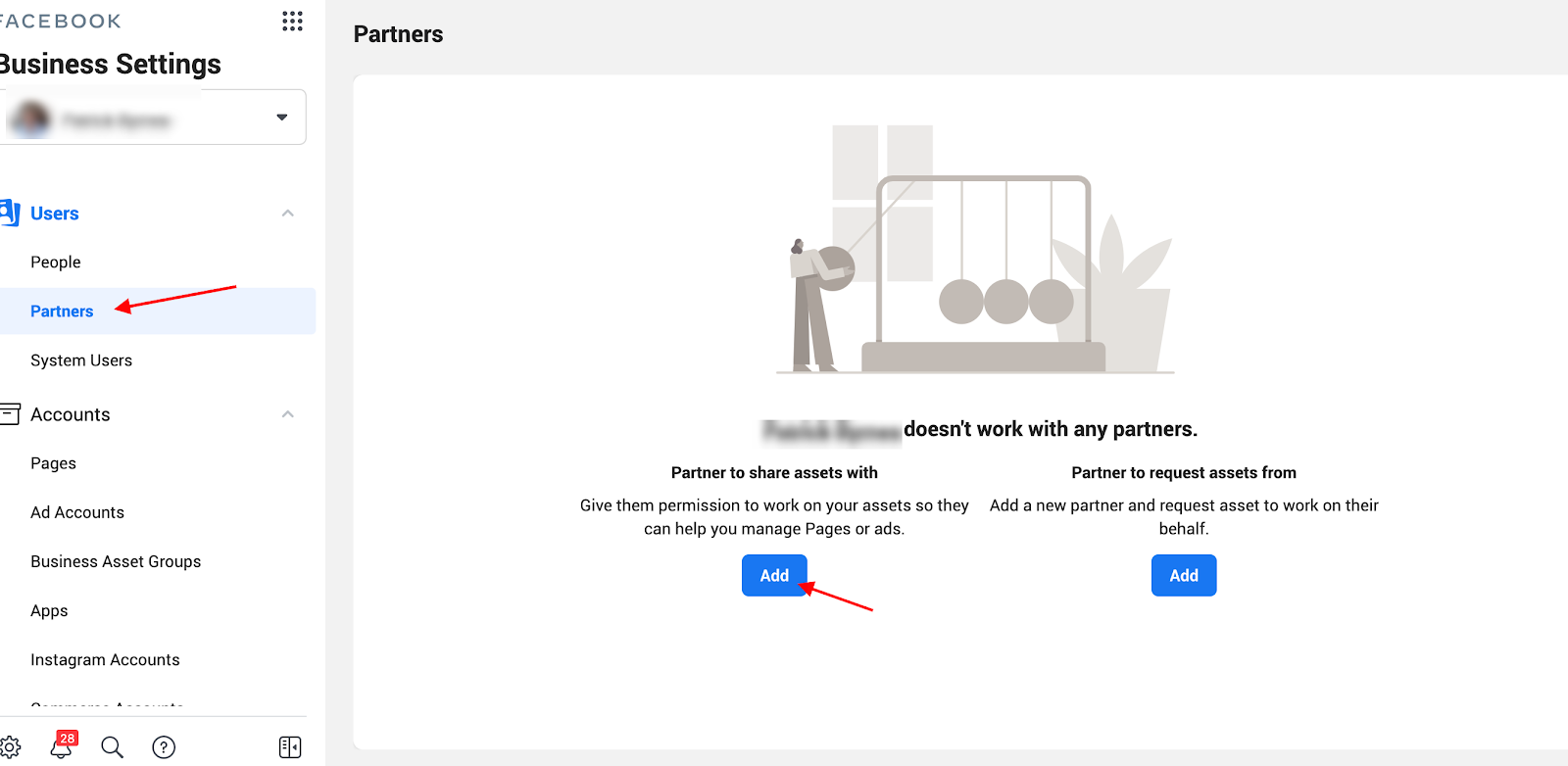
- Click “Partners” on the left-hand side. Then click “Add”
- Next enter in our Business ID: 1252244238206185 and click next. Then on the following pages make sure you allow “admin access”.
- Great! Now we are added as a partner to your Business Manager Account.