
Granting Us Access to Your Digital Assets
To set your marketing program up for success, we’ll need access to a few of your digital assets, such as your website, Google accounts, and social media profiles. This allows us to manage and optimize your online presence effectively. Below, you’ll find a simple guide outlining the access we’ll need and how to grant it securely.
All Programs
- CMS
Access video 👉 https://vimeo.com/1074160745
- Do you have Wordpress?
- If “yes,” have them follow these instructions:
- Access your admin site like so: https://www.YOURDOMAIN.com/wp-admin
- Go to "Users" > "Add User"
-
- Add the following info using jessie@deckbuildermarketers.com as the email address and jchampagne as the username
- Ensure that you select ‘Admin’ as the role and then click Add New User
- If “no,” then please send us the link, username & password to your CMS/Hosting website.
- We need your login details: username/email & password. Invitation-based access is not to be accepted unless through Wordpress.
- Your information will be stored in a secure platform (1Password) which only select members of management have access.
- Domain

Access video 👉 https://vimeo.com/1074297072
- Please send login credentials to your domain provider (i.e. Network Solutions, FatCow, Google domains, etc.). Keep in mind that sometimes domain is on a separate account from your hosting provider, but sometimes is in one.
- Invitation-based access is not to be accepted unless through Wordpress or GoDaddy (GoDaddy access invitation to be sent to april@aedesignco.com)
- If GoDaddy- Access video 👉https://www.loom.com/share/eaeafa91c20545b693e099b8955e7c5a
- Hosting
Access video 👉 https://vimeo.com/1074291347
- Please send login credentials to your hosting provider (Enter.net, BlueHost, Flywheel, etc.)
- Is your hosting privately owned through a previous agency's server? Let us know!
Google Properties
All Programs
- Google Tag Manager
- If you already have Google Tag Manager installed, please follow these instructions to give us access:
- Sign in to your Google Tag Manager account
- Click on the dots to the top right of your container name
- Add deckbuildermarketer@gmail.com
- Check “Administrator, User, and ALL options under Container Permissions"
-
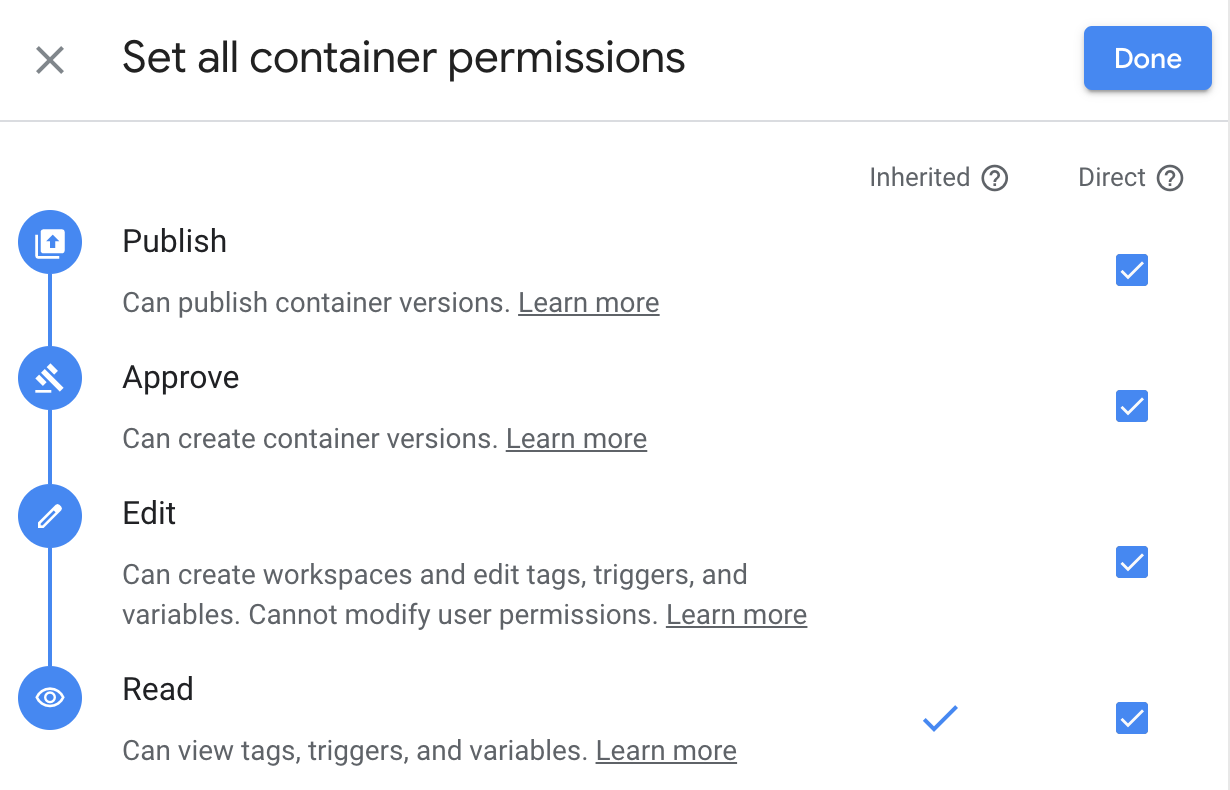
- Finish by clicking on the “Invite” button
- If you already have Google Tag Manager installed, please follow these instructions to give us access:
- Google Analytics
Access video 👉 https://vimeo.com/1074301758
- Follow these instructions if you already have a Google Analytics account that you have access to:
- Select the “Admin” tab (bottom left-hand side) and navigate to the desired account
- In the “Account” column, click on “User Management”
- Add jessie@deckbuildermarketers.com
- Check “Edit, Collaborate, Read & Analyze, Manage Users” under “Permissions”
- Click the “Notify this user by email checkbox”
- Finish by clicking on the “Add” button
- Google Search Console
- Follow these instructions if you already have a Google Search Console account that you have access to:
- Sign in to your Google Search Console account
- Find your property and right-click on “Manage Property”
-
- Add deckbuildermarketer@gmail.com with full permissions
- Follow these instructions if you already have a Google Search Console account that you have access to:
- Google Business Profile

- Follow these instructions if you already have a Google Business Profile/Google My Business account that you have access to:
- Sign into your Google Business profile and search your business
- Click the 3 little dots at the top right of your profile

- Click “People and access”
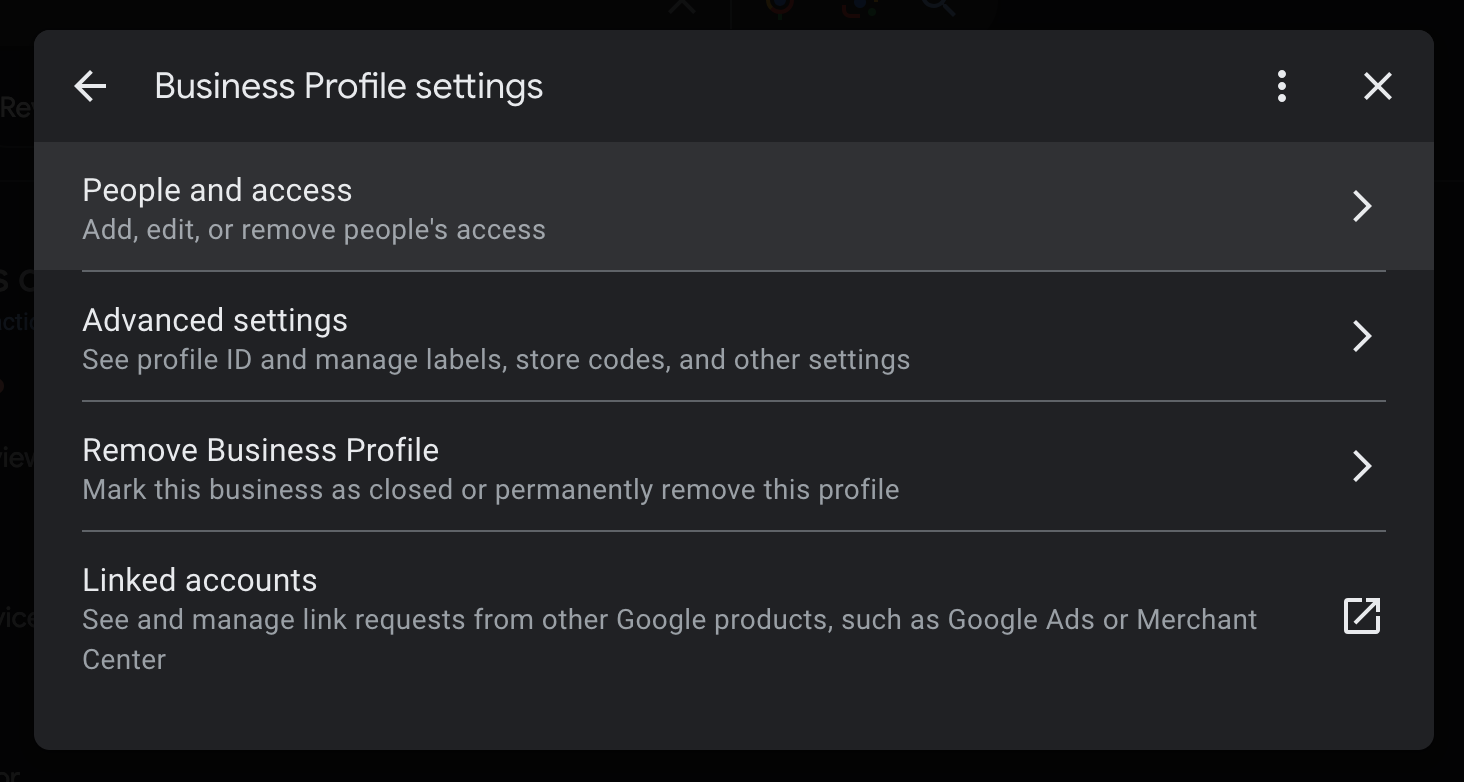
- Type in “deckbuildermarketer@gmail.com” and check manager, then click invite.

Ads & Socials
Growth & Dominate
- Google Ads
Access video 👉 https://vimeo.com/1074300550
- Give us your account number You can find this by logging into Google Ads and copying and pasting it from the top right corner
-
- We’ll request manager access
- You’ll receive a notification to your email to accept
- Facebook Page Access
- Open Facebook
- Go to Facebook and log in with your credentials.
- Your Business Page:
- Access Page Settings:
- Click the gear on the left side of your page, under Manage Page.
- New Pages Experience
- Click on that to access page roles.
- Add a Person:
- Click on the "Add New" button.
- Enter the Person's Name or Email:
- Type in the name or email address of the person you want to add. (jessie@deckbuildermarketers.com)
- Select Role:
- Choose the role for the person you want to add. Please select Admin.
- Confirm and Save Changes:
-
Click on "Submit" or "Save Changes" to add the person to your ad account.
-

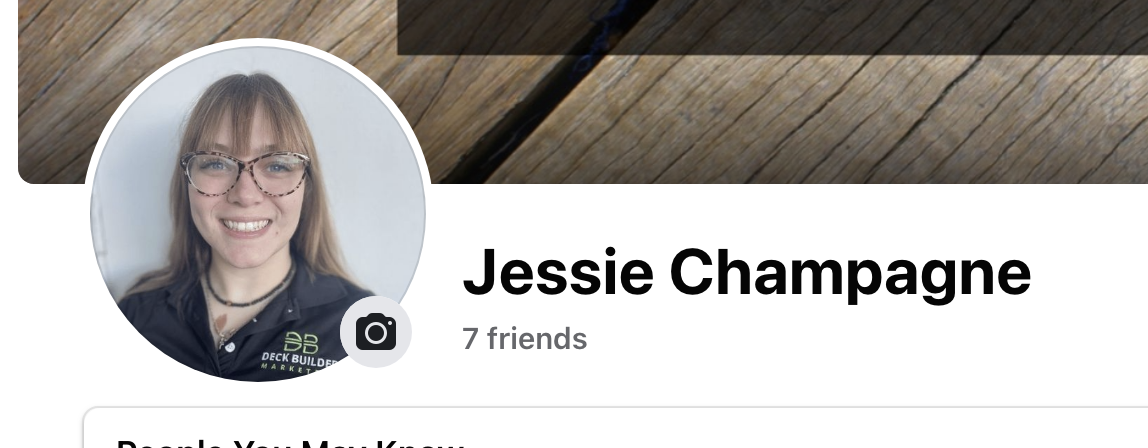
Here’s what my profile picture looks like:
- Bing Ads
- Please share you login information with us. Rest assured that it will be stored in a secure platform (1Password) where only the necessary employees have access.
- Instagram
- As long as your Instagram profile is connected to your Facebook Business Manager, you don’t have to do anything here, since we’ll have access through there.
- If your Instagram account is not connected, please share your login information with us. Rest assured that it will be stored in a secure platform (1Password) where only the necessary employees have access. Once we attempt to log in, Insta will have me work through a time-restricted 2-factor authentication that will go to your phone number or email.
- Connect FB to IG
- Connect your IG to Facebook
- Follow these steps:
- Log in to Facebook
- Select Pages in the left menu
- Choose your Facebook page
- Click Settings
- Select Linked Accounts in the left column
- Select Instagram
- Connect your account
- If that doesn't work for you, follow these steps:
- Go to your Instagram profile
- Tap Edit Profile
- Under Profile information, tap Connect or create next to Page
- Tap Continue
- Choose a page from your Pages that you'd like to connect to or select Create a new Facebook Page
- Tap Done once you've selected a page or created a new Facebook page
- Follow these steps:
- Connect your IG to Facebook
- LinkedIn
- Go to your business profile page, and click Settings > Manage Admins
- Add Jessie (https://www.linkedin.com/in/jhdchampagne/), click Super Admin, and save.
- She will add other necessary team members.
- Online Listings
- Please provide us the links AND logings for these online listings for your business:
- BBB
- Yelp
- Houz
- Angi
- HomeAdvisor
- Other
- Please provide us the links AND logings for these online listings for your business: