
Opportunities Overview
Sales Jumpstart Opportunities: Manage Your Pipeline with Confidence
Your Opportunities tab is where you track every lead’s journey from first contact to booked project (or closed deal). Think of it as your sales pipeline—a clear roadmap showing where each lead is in your process so you know what to focus on next.
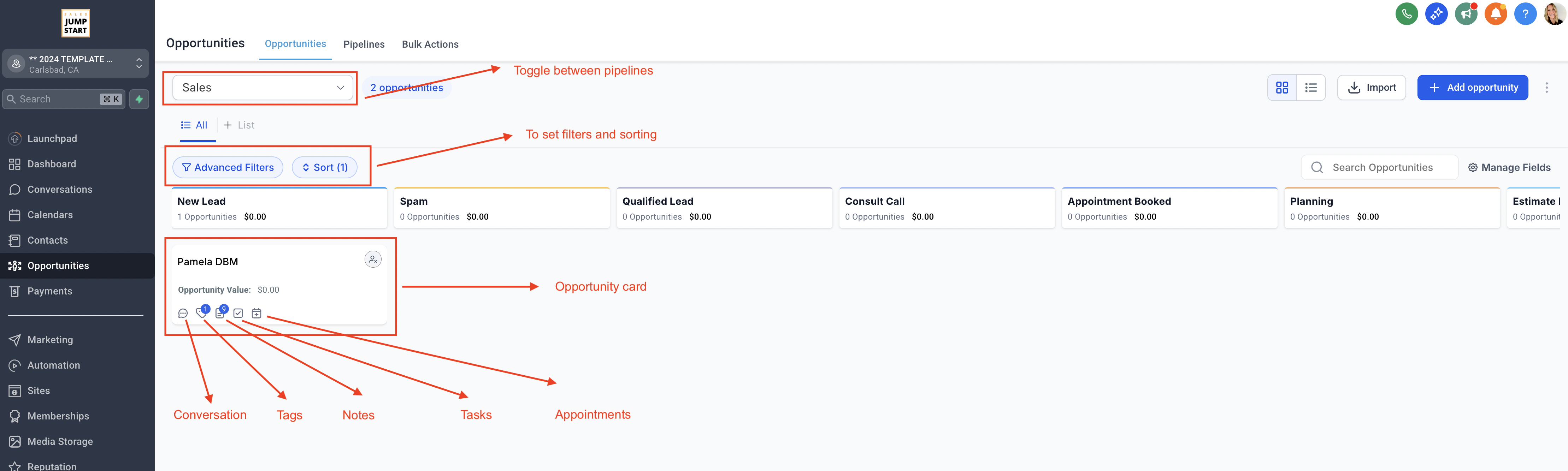
Navigating the Opportunities Overview
The Opportunities section is where you manage your leads as they move through your sales pipeline. It provides an organized view of every prospect’s journey, so you can stay on top of where they are in the process and what needs to be done next.
Watch this quick Loom video to get a full walkthrough of how to navigate through the Opportunities page, understand the pipeline stages, and use all the features effectively
Filter and View Opportunities
- Filter your pipeline by date ranges—from all time down to custom windows—so you can focus on leads added during any specific period.
- Sort opportunities by date added or alphabetically, ascending or descending.
- Use filters to narrow down by:
- Pipeline (if you have multiple pipelines set up)
- Opportunity owner (team member)
- Campaigns tied to each lead
- These filters help you slice your pipeline exactly how you want to manage your workload.
🔔 Don't see what you're looking for in your Opportunities? Be mindful if you have multiple Pipelines that you have the correct Pipeline toggled on. Be mindful if you have filters on your pipeline.
How Pipeline Stages Work
Your pipeline is divided into stages that represent where a lead stands in your sales process. Typical stages might include:
- New Lead: Fresh contact, just entered your system
- 🔔 If someone submits the form on your website or calls one of the tracking phone numbers they automatically get added as a New Lead
- Qualified: Lead shows interest and fits your ideal client profile
- Consult Call: You’ve reached out via phone or scheduled a consultation call
- 🔔 If you are using the Phone Consultation calendar booking system, their is an automation to move the contact card into this stage automatically
- Appointment Booked: You have an in-home consultation on the calendar with them
- 🔔 If you are using the In Home Consultation calendar booking system, their is an automation to move the contact card into this stage automatically
- Estimate Delivered: You’ve sent a quote or estimate
- 🔔 We have automations connected to this so you can be reminded after 5 days of someone sitting in Estimate Delivered to reach out to them to try and close the deal!
- Project Sold: Lead agreed and booked the project—congratulations!
- Project Complete: The job is done - now it's time for a review!
- 🔔 We have automations connected to this, once they are moved to project complete, the review request emails send out
- Waiting Until Later: Perhaps they are still in the research phase, or they know that they want to work with you but their project isn't ready to get started for a few months
- Lost: Lead decided not to move forward
- Unqualified: Perhaps they were just outside your service area, or were seeking a quick fix service you do not offer
- Spam: They are inevitable as your business gains more online visibility!
Moving opportunities through these stages keeps your sales process organized and transparent. It shows where leads are stuck and where you should focus your attention to close more deals.
What’s the Opportunity Pipeline For?
The opportunity pipeline is your live sales dashboard. It helps you:
- Visualize every lead’s current status in your sales process
- Prioritize follow-ups and next steps
- Track your sales performance over time
- Collaborate with your team by assigning owners and tasks to each opportunity
It’s more than just a list—it’s your roadmap to consistent, predictable growth.
Adding a New Opportunity
- In the Opportunities page you can click + New and fill out the details in the pop-up window to create an opportunity tied to a contact or lead.
- On the Contacts page, and within the contact record, you can manually add someone as an Opportunities by scrolling down the left side panel to the Actions section and clicking + Add to add that contact to the desired stage in your pipeline
Use “Additional Info” Filters
- Filter by leads with assigned tasks, calendar events, notes, and more.
- Inside an opportunity, you can:
- View tags
- Open conversations
- Contact the lead directly
- Add tasks to keep things moving
🔔This section remembers your filters to save you time on your next visit.
📌 Why It Matters
Your opportunities pipeline is the heartbeat of your sales system. Use it to stay organized, move leads forward deliberately, and keep your business growing steadily—no surprises, no dropped balls.