
How to Verify Your Google LSA Account
(Step-by-step guide for Deck Builder Marketers clients)
Verifying your Google Local Services Ads (LSA) account is how your business becomes officially “Google Guaranteed” or “Google Verified.” This allows homeowners to find you at the top of Google search results and contact you directly for projects.
Please follow each step carefully. If something is confusing, we can walk you through it on a short video call.
Step 1: Log in to your LSA dashboard
- Go to ads.google.com/localservices
- Click “Sign In.”
- Log in with the same Gmail address you used to create your LSA account.
- Once inside, you’ll see several sections such as “Billing Information,” “Proof of Insurance,” and “Background Check.”
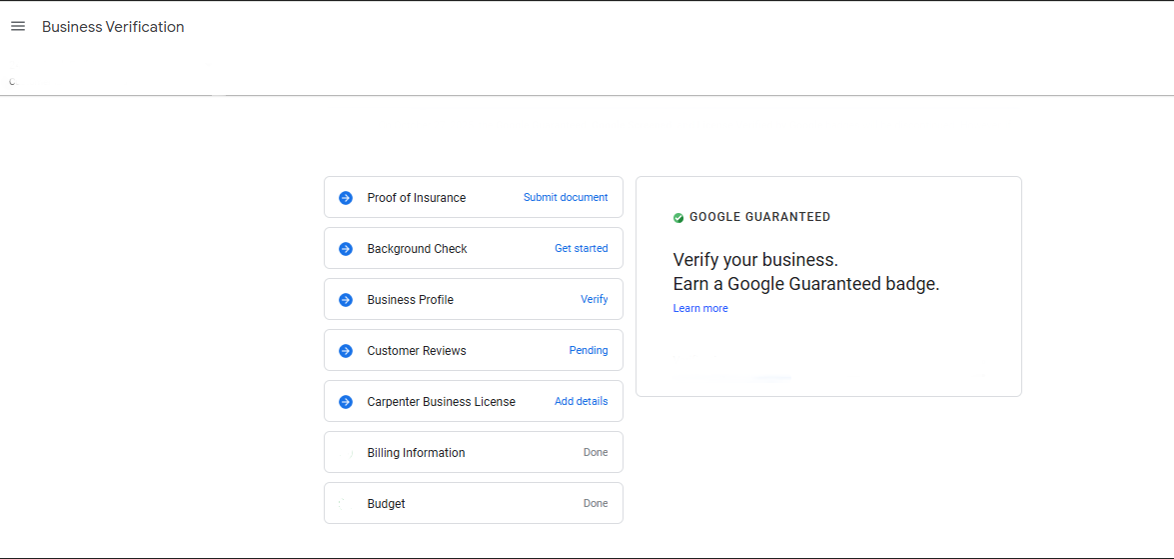
Step 2: Complete each section one by one
Each section must have a green checkmark ✅ on the left side when it’s finished. Go through them one at a time.
Billing Information:
- Click “Billing Information.”
- Add your credit or debit card details. Enter the name on the card, the card number, expiration date, and CVV (the 3-digit number on the back).
- Make sure the card is active and has available funds.
- Click “Save.”
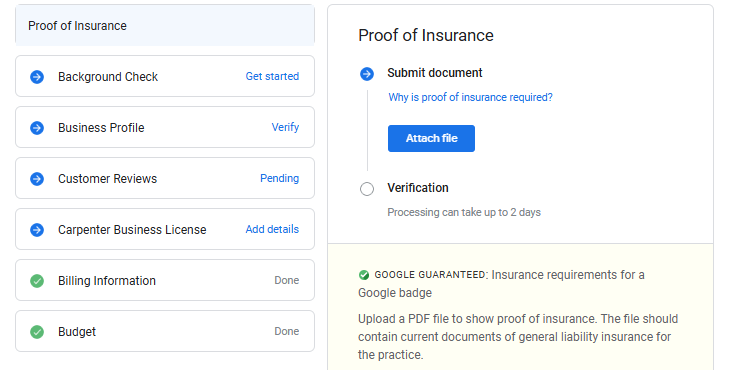
Proof of Insurance:
- Click “Proof of Insurance.”
- Upload your current insurance document (PDF or image).
- The insurance must show your business name and must be valid (not expired).
- Click “Save.”
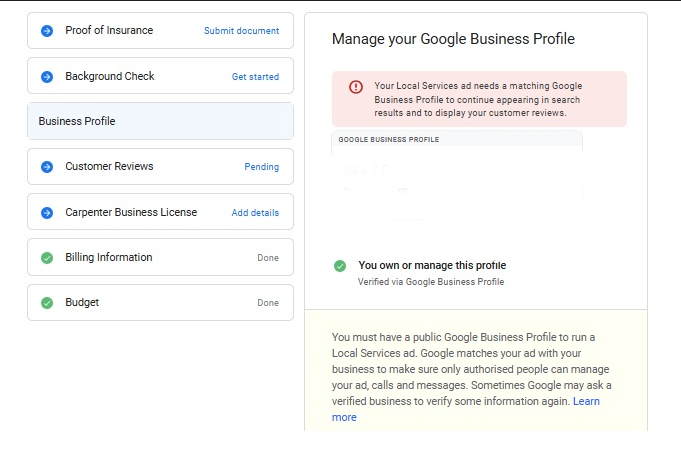
Business Profile:
- Review your business name, address, and phone number.
- Make sure this matches your Google Business Profile exactly.
- If anything looks wrong, fix it and click “Save.”
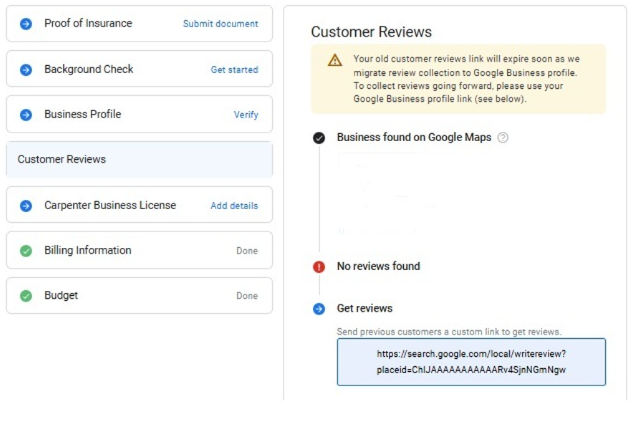
Customer Reviews:
- Make sure your LSA account is linked to your Google Business Profile.
- You should have at least one review visible on Google.
Budget:
- Click “Bidding & Budget.”
- Enter the amount you’d like to spend per week (for example, $200).
- You can always change this later.
- Click “Save.”
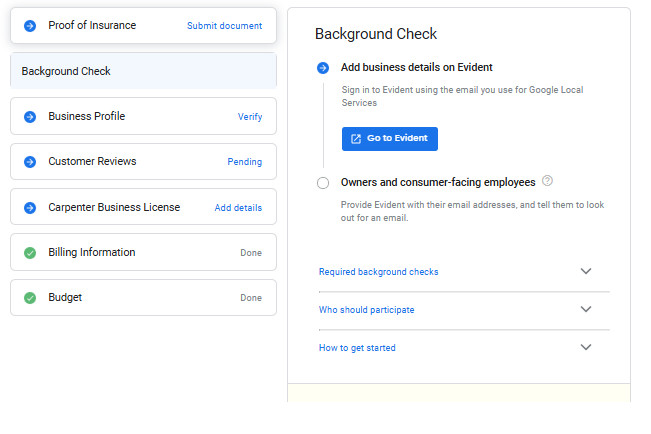
Step 3: Complete the Background Check
This is the most important step — without it, Google won’t approve your account.
- Find the section called “Background Check.”
- Click “Get Started” or “Go to Evident.”
- A new window will open. Evident is Google’s partner that handles verification.
- Sign in using the same email address as your LSA account.
- Follow the instructions carefully. You may be asked for:
- Your business name and address.
- The owner’s full name and date of birth.
- Copies of your insurance or business license.
- When you finish, check your email inbox and spam folder for a message from Evident.
- Open that email and click the link inside to confirm your information.
- Go back to your LSA dashboard. If it now says “Pending,” that means Google received your info.
If it still says “Get Started,” repeat the process — sometimes the first attempt doesn’t go through.
Step 4: Recheck your Billing and Insurance
If your account is still not verified after a few days:
- Log back into your LSA dashboard.
- Click on “Billing Information.” Re-enter your card details and click “Save.”
- Click on “Proof of Insurance.” Upload your insurance file again and click “Save.”
This helps make sure Google has the latest information.
Step 5: If it still doesn’t work
If you’ve done all of this and your account still says “Get Started” or “Pending”:
- We will contact Google Support for you to complete the verification.
- If you prefer, we can schedule a 10-minute video call to guide you step-by-step while you share your screen.
Step 6: After your verification is complete
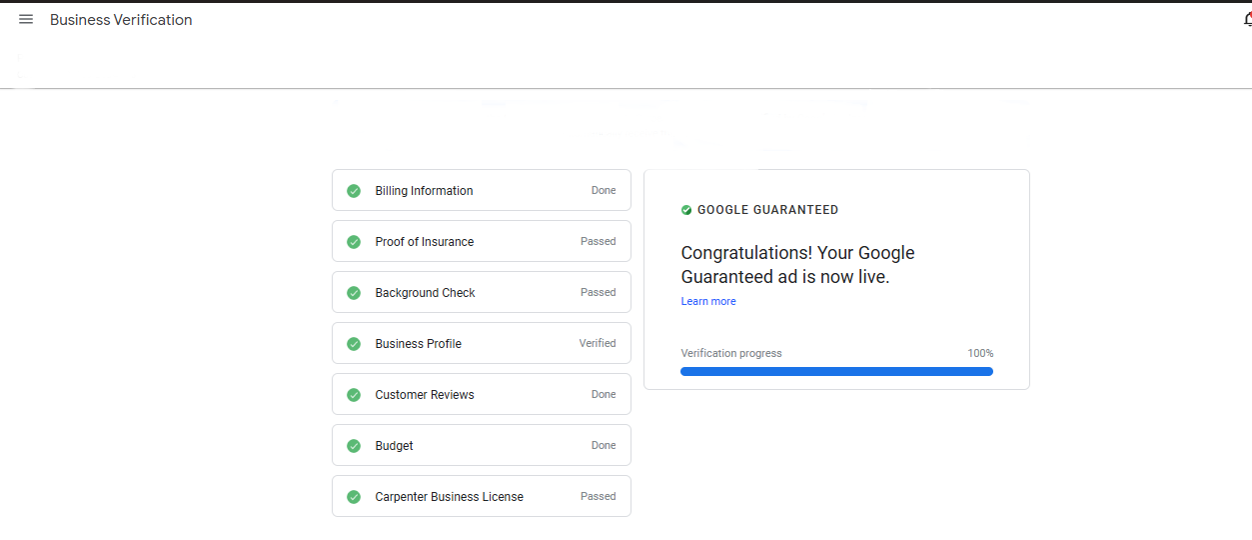
Once your account is approved, Google will send you an email saying your business is verified.
After that, your ads can start running, and you’ll see the “Google Guaranteed” or “Google Verified” badge in your account. This means homeowners can now find and contact you directly through your ads.
This is how your account should look at the end of the process
DBM Pro Tip
The most common delay happens because the Evident email isn’t completed or goes to spam.
Search for “Evident” in your email inbox and spam folder, open that message, and finish the form. Once you do that, Google usually verifies your account within a few business days.